Naver Map & KakaoMap in English: Korea Map App Guide

Photo by Huy Phan on Pexels
You land at Incheon, open Google Maps out of habit, and at first everything looks normal — the map draws, your hotel shows up in search. Then things start quietly going wrong: the cafe you saved from a video turns out to have closed months ago, and when you ask for directions, the driving and walking options simply refuse to produce a route. This is the moment most first-time visitors discover that Google Maps in Korea is usable but limited — and often out of date. The fix is simple: install Naver Map and KakaoMap — the two apps Koreans actually navigate with — and spend five minutes switching them to English. This guide walks through exactly that, plus the quirks nobody warns you about: transit errors, the offline question, and what to do when English search comes up empty.
Why doesn’t Google Maps work in Korea?
It does open and work — the map displays normally, you can search major places, and public transit directions with real-time updates are there. I checked all of this on my own phone. What’s missing is turn-by-turn navigation: ask for a driving route and nothing is offered; walking requests dead-end in Google’s “Can’t find a way there” screen.
The reason is legal, not technical. South Korea classifies its high-resolution map data as a national security asset and prohibits exporting it to overseas servers without government approval. Google has been asking for the detailed 1:5,000-scale map data since the 2010s; officials have long argued that exporting precise mapping data could expose military facilities and other sensitive sites.
So here’s the honest three-way picture for a traveler:
- Works: the map itself, place search for major spots (with photos and reviews), and transit directions.
- Doesn’t: car and walking turn-by-turn navigation — Google’s own coverage documentation lists no driving-directions coverage for South Korea.
- Lags behind: freshness. In my day-to-day use, new openings, closures, and review activity land on Naver and Kakao long before Google’s listings catch up — treat Google’s place pages as a snapshot, not the current state.
This may finally change: on February 27, 2026, Korea approved Google’s map-data export request under strict conditions (local processing, blurring of sensitive facilities, and more), ending a 19-year dispute. But the approval only means Google can offer turn-by-turn navigation once those conditions are met — as of this writing, the app on your phone still won’t give you a car or walking route.
Meanwhile, locals never waited: Naver Map had about 27 million monthly active users as of March 2025, and KakaoMap about 11.7 million. Those are the two apps this guide sets up.
How do I use Naver Map in English?
Good news first: Naver Map officially provides its maps in Korean, English, Japanese, and Chinese, with English navigation as well.
And you don’t need a Naver account just to get around — I tried it logged out: place search, directions by transit, car, and walking, turn-by-turn navigation, and even road view all work fine. The sign-in screen only appears the moment you tap save on a place.
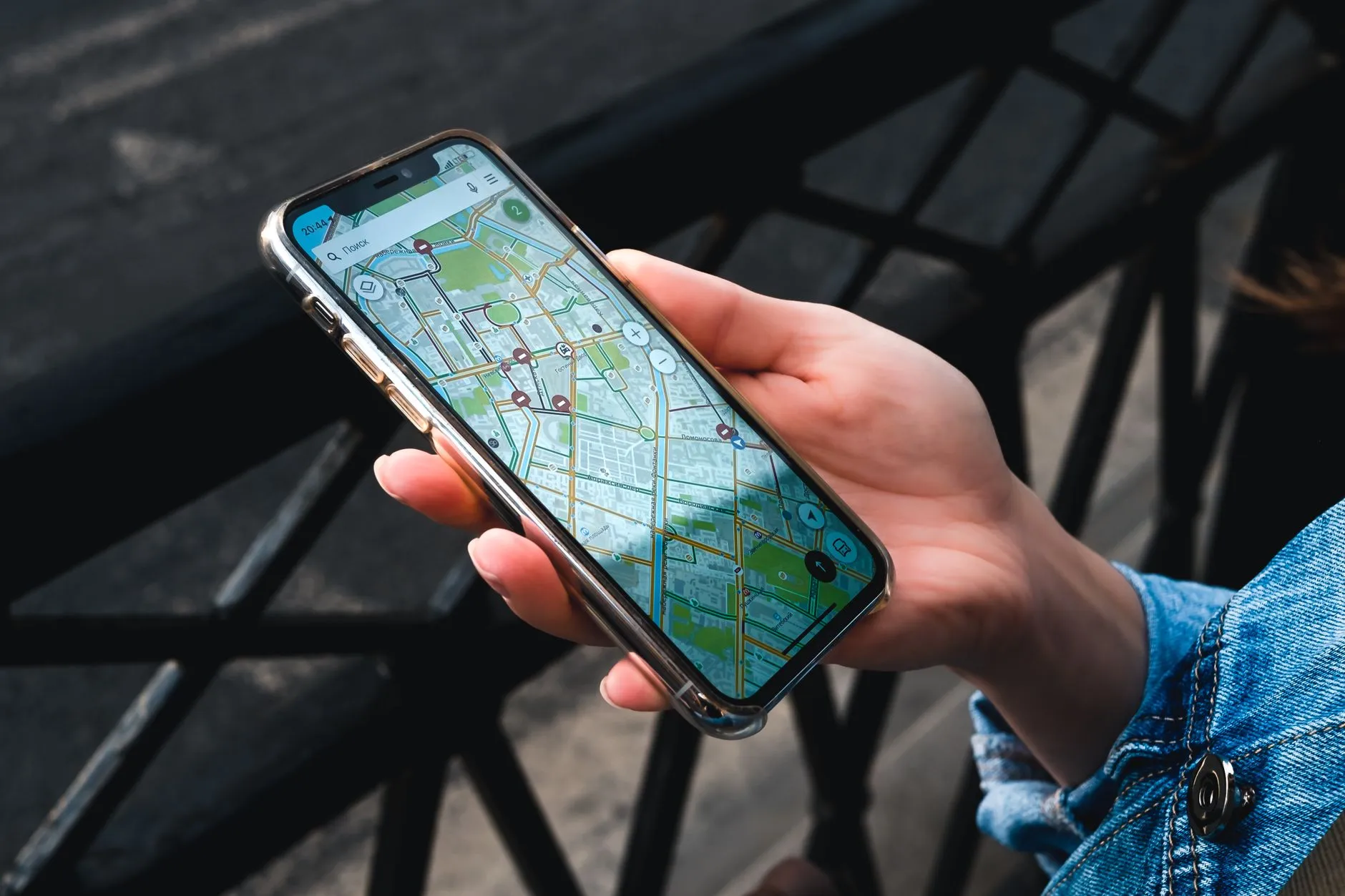 Photo by Stanislav Kondratiev on Pexels
The switch lives inside the app: Menu → Settings → Language, then pick English and let the app restart. Menu locations shift between app versions, so look for the settings gear rather than following screenshots tap for tap. One thing to know up front: this language setting exists only in the mobile app — the map.naver.com website has no English mode (more on that below).
How far does English mode actually go? Further than I expected when I switched my own phone over: nearly everything displays in English, and large buildings and landmarks show their English name on the map with the Korean name in smaller text beneath it — which also makes it easy to match what you see against street signs.
Can I use Naver Map in English on a desktop?
No. This is a question I see travelers ask constantly — they want to plan on a laptop before the trip — so it’s worth saying plainly: the web version at map.naver.com has no English mode at all. The language setting from the previous section exists only in the mobile app.
Realistic alternatives:
- Do your real planning in the phone app — it’s the only first-class English experience Naver offers.
- Treat browser auto-translate as a stopgap, not a fix. Chrome can translate a page into other languages, but that covers the page’s text — the map tiles and labels themselves aren’t translatable page text. Good enough for reading a place page, not for navigating.
How do I use KakaoMap in English?
KakaoMap — the map app from the company behind KakaoTalk — covers the same ground: routing for cars, public transportation, walking, and bicycles, one search bar for places, bus numbers, and bus stops, real-time bus information, and a subway map built in.
To switch it to English: More tab → Settings (the gear) → Language. As ever, menu locations shift between KakaoMap versions, so expect the screens to differ slightly from any guide you find online.
Having run both side by side, I’d call KakaoMap’s English coverage close to identical to Naver Map’s in practice — switch it once and you’ll feel at home in either app.
Naver Map vs KakaoMap: which is better for foreigners?
Install both — they’re free and each covers the other’s blind spots. By task:
| Task | Naver Map | KakaoMap |
|---|---|---|
| Transit directions | Transit routes across bus, subway, and more with real-time departure and arrival times | Public-transportation routing plus real-time bus info and a built-in subway map |
| Walking | Walking directions built in | Walking routes built in |
| English POI search | Largest user base; English data still incomplete for some names and addresses | Same weakness — both companies acknowledge gaps in English place data |
| Reviews & photos | Bookmarkable places with restaurant/tourist-spot saves and sharing | Favorites managed in groups, shown on the map |
| Who uses it | ~27.05M monthly users (Mar 2025) | ~11.71M monthly users (Mar 2025) |
For what it’s worth, my own habit has settled firmly on one side: I reach for Naver Map for both real-time bus arrivals and restaurant reviews, and KakaoMap stays on my phone as the second opinion for the rare route I want to double-check.
How do transit directions work (and why do they sometimes fail)?
Both apps route you door to door across subway and bus, with real-time arrival information — this is the local apps’ home turf. Pair them with a T-money card and our Seoul subway guide and you’re fully covered.
If a transit route ever refuses to appear, don’t assume the app is broken: recheck the departure time first (a search pointed at the middle of the night has little service to show), then try the walking or car tab for the same two points.
Does Naver Map work offline?
No — and Google Maps doesn’t fill the gap here either. The current Naver Map app has no offline map download feature, and Google Maps doesn’t offer its offline area download for Korean territory at all — consistent with Google’s own note that offline maps are unavailable in some countries for contractual reasons, and with the export restrictions described above.
So plan for the moments you’ll be offline instead:
- Screenshot the key screens before going underground or out of coverage — the route overview, the transfer list, and the map around your arrival point.
- Better: stay online cheaply for the whole trip — see our Korea SIM & eSIM guide.
How do I save places and build a trip list?
Naver Map has a bookmark feature made for exactly this: save restaurants and the sights you don’t want to miss, then share the list with travel companions. KakaoMap’s equivalent is Favorites, which you can manage in groups and display on the map.
Here’s the system I actually run in Naver Map: I stay logged in and keep saved-place lists split by purpose — one for food, one for the places I go back to again and again — and when friends visit, I hand them a whole list with the share button instead of texting addresses one by one. Steal that pattern for your trip: every time a friend, blog, or video mentions a place, save it to a trip list on the spot. By departure day your map is your itinerary — no more digging through notes at a street corner.
What if English search can’t find a place?
First, some perspective: at least one foreign user quoted in the Korea Times found search struggling with typed-in English names, and Naver has acknowledged its English data for building names and public-transit information is incomplete (Kakao says English place names aren’t yet standardized).
In my own daily use, though, English search has yet to fail me outright — the places that play hard to get are usually hiding behind their names. The tip that unlocks them: search the romanized Korean pronunciation, not an English translation. My favorite example is the legal-district area locals call beopjo town (beopjo — the legal profession; a cluster of courts and law offices): type “beopjotown” and it comes straight up, while none of the English translations I tried got me there.
And if a name search still comes up empty, search the nearest landmark or subway station and pan the map — foreign users describe Korean-style addresses as “a mess” that the maps “never pick up” unless the order is exactly right, so skip the address entirely.
FAQ
Does Naver Map have an English version?
Yes — the Naver Map app supports English (plus Japanese and Chinese), including English navigation; switch it in the app’s settings. The website has no English mode, so do your planning in the app.
Which map app is best for Korea?
If you install only one, make it Naver Map — it’s the country’s most used map app, with full transit, walking, and driving directions in English. Keep KakaoMap installed as a second opinion. Google Maps still opens, shows the map, and can route transit here, but with no walking or driving navigation it’s a backup for reading up on places, not your navigator.